loader
banner

WhatsApp scams in South Africa have evolved beyond the usual “Hi Mum” messages. A growing tactic targets WhatsApp Web / Linked Devices and can let criminals “silently” monitor your chats and impersonate you — often without you realising anything is wrong until friends or family get a money request from “you”.

This scam is widely described as GhostPairing: the attacker tricks you into completing WhatsApp’s own device-linking flow, but the device being linked is theirs.

How the scam works

  1. You get a convincing message or prompt (often from a compromised contact) like “Hey, I found your photo” or a link that looks legitimate.
  2. You’re redirected to a fake WhatsApp Web page that shows a QR code (or instructions to “link your device”).
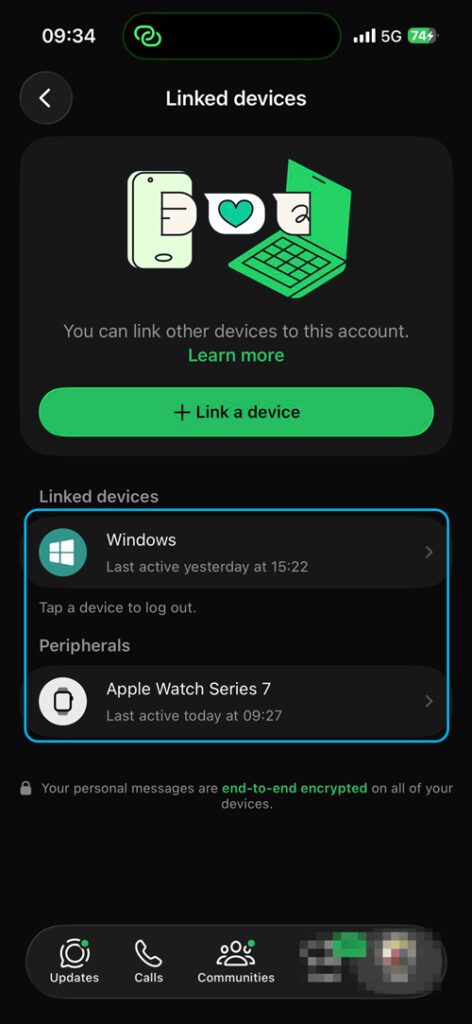
  3. If you scan that QR code inside WhatsApp (Linked Devices → Link a device), you may unintentionally link the attacker’s browser to your account.
  4. The attacker can then read messages in real time and message your contacts as you, often asking for urgent payments.


The warning is blunt: criminals can lift a real WhatsApp Web pairing QR code and place it on a malicious page—if you scan it, you may be handing over access.

Why it’s so effective

  • It uses a legitimate feature (Linked Devices), so it doesn’t feel like a “hack” to the victim.
  • Your WhatsApp on your phone often continues to work normally, so the compromise can go unnoticed.
  • Many people never check Linked Devices, so the attacker stays connected longer.

How to protect your WhatsApp account

1) Check and remove unknown Linked Devices (do this first)

Open WhatsApp → Settings → Linked devices

Log out of anything you don’t recognise. WhatsApp explicitly recommends checking linked devices regularly.

2) Enable Two-step verification 

WhatsApp → Settings → Account → Two-step verification

This adds a second layer that makes takeovers significantly harder.

3) Only scan QR codes on your own screen

A safe rule:

Only scan a WhatsApp Web QR code when you personally opened WhatsApp Web/Desktop on a computer you trust (e.g., web.whatsapp.com).

Never scan a QR code sent to you, shown on a random “support” page, or embedded in a forwarded message. This is the exact trap described in multiple write-ups.

4) Turn on App Lock (optional but helpful)

App Lock helps prevent someone with access to your phone from linking devices behind your back.

5) Watch for “odd” signals

  • Friends say they received strange messages from you
  • You suddenly see a linked session you don’t recognise
  • You get pressured to “verify” something by scanning a QR code or “linking” a device


Security vendors note the scam often starts with a short, casual message from a compromised account to lower your guard.

If you think you’ve been compromised

  1. Log out all linked devices (Settings → Linked devices).
  2. Turn on Two-step verification 
  3. Message your key contacts (family/work groups) warning them not to trust payment requests from your number. 

Why this matters for businesses

For teams using WhatsApp groups operationally (field teams, client comms, project teams), GhostPairing can become a workplace security issue—an attacker in a compromised employee account can watch group chats and use trust to trigger fraudulent payments.